iPhone · Lock Screen

Your calendar.
Always visible.

Put your schedule on the Lock Screen so you see what’s next without opening apps. Built for focus: the way a lock screen calendar should feel.

Free to try on the App Store. No account required.

★★★★★

移動中でもスケジュール管理がしやすい便利アプリ

Great app for staying organized on the go! As an editor who often travels for work, this app has been incredibly helpful in keeping my schedule visible and easy to manage right from the lock screen. It’s simple, practical, and fits perfectly into my daily workflow.

Mar 21, 2026 · Dickens@JP

★★★★★

Exactly what I wanted

Works well and allows me to keep track of my very busy schedule. I’ve got a family, grad school and a full time job. This allows me to keep me on task. The addition of the reminders is especially helpful for me since I have many.

Mar 4, 2026 · rar66

★★★★★

Optimized app that always listens

The app is interesting and constantly strives to improve its features for user convenience. I prioritize supporting Vietnamese products and hope the app will continue to release more formats, concepts, and planning tools.

Apr 17, 2026 · ken_nguyeen

★★★★★

Helpful app

Wonderful. I really love it for people who are forgetful and struggle with planning their schedule. Wishing the app continued, long-term growth.

Apr 3, 2026 · vàng 24k

★★★★★

Great idea

I searched extensively and this is the only app that displays calendar on lockscreen.

Mar 21, 2026 · Arm9905

★★★★★

Great support

Super convenient for people with ADHD who often forget one thing while doing another. The developer support was very responsive. I was able to fix my issue right away.

Apr 1, 2026 · Viviandinh99

★★★★★

Dark Mode Needed

A terrific app. Summarizes the days ahead for me at a glance.

Mar 27, 2026 · Didibizi

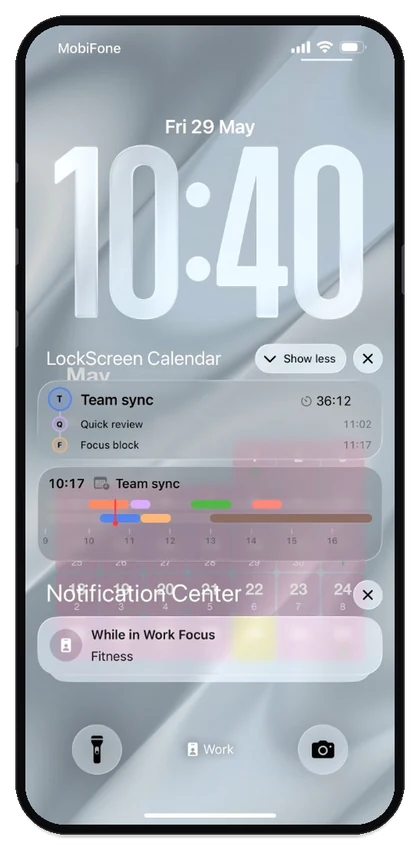
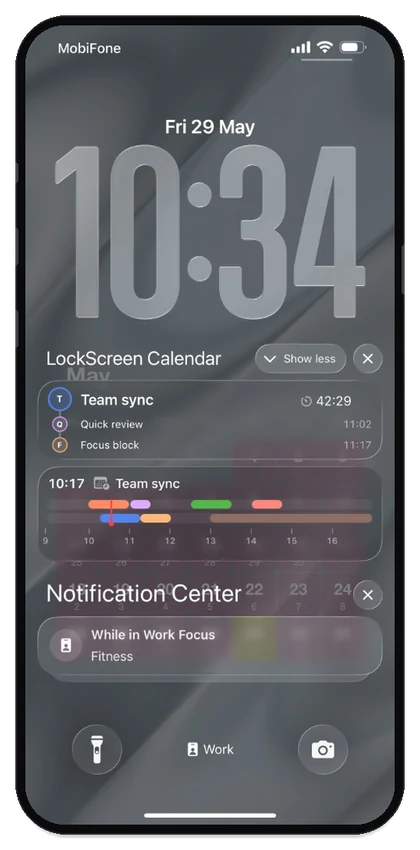
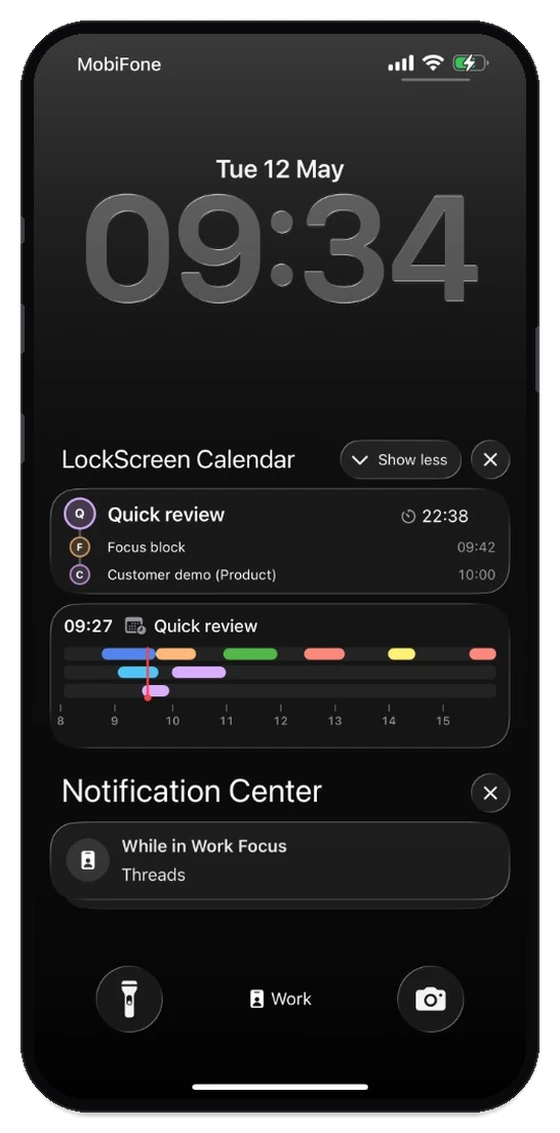
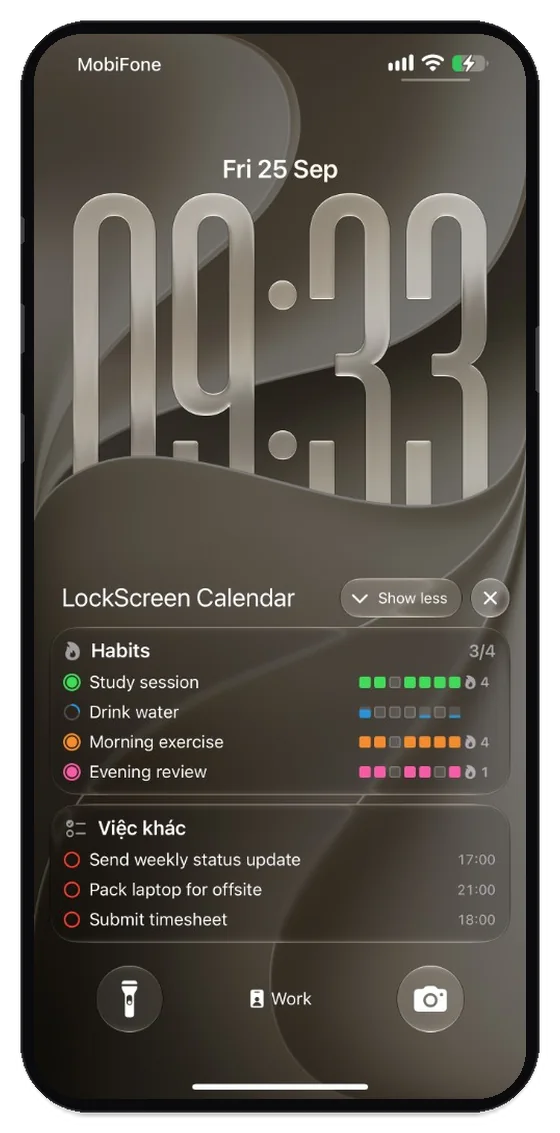
Live Activity

Next events and your day, on the Lock Screen.

Live Activity shows a structured list of what’s coming up and a timeline of the day, updated as Calendar changes, without unlocking your phone.

iPhone Lock Screen with Live Activity: event list and day timeline

Lock Screen widgets

Layouts for your Lock Screen.

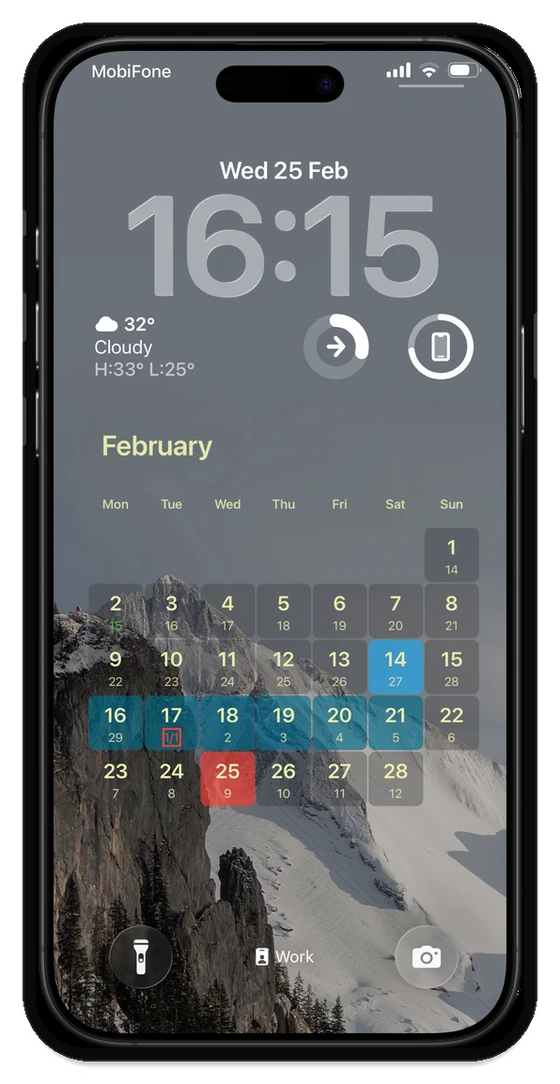
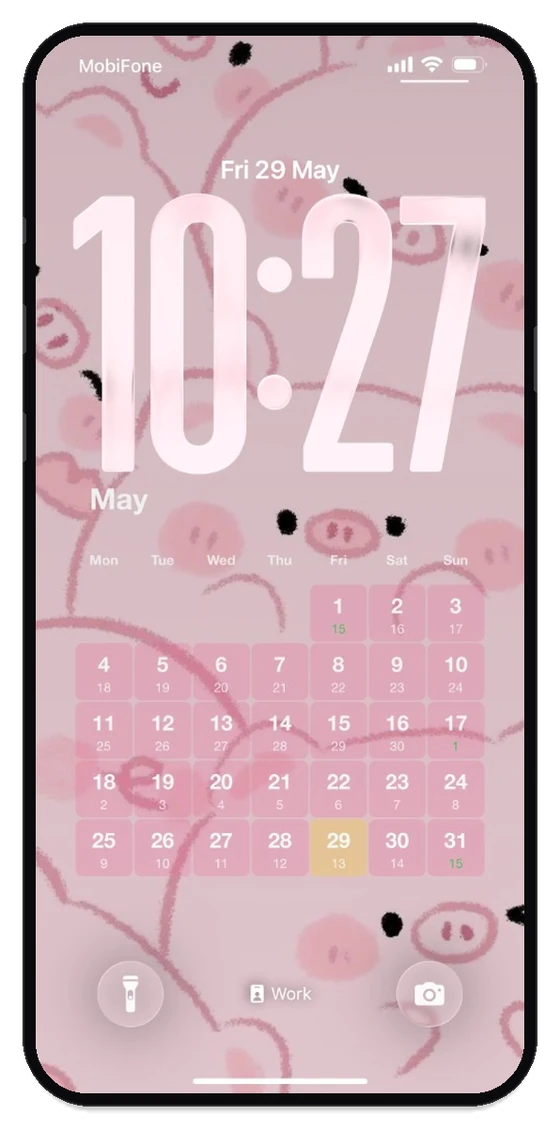
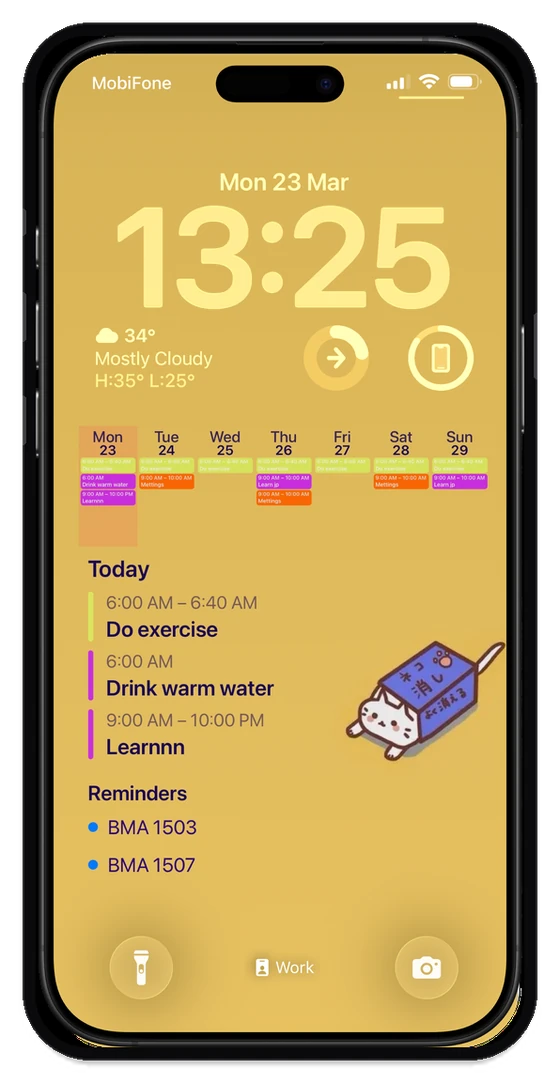
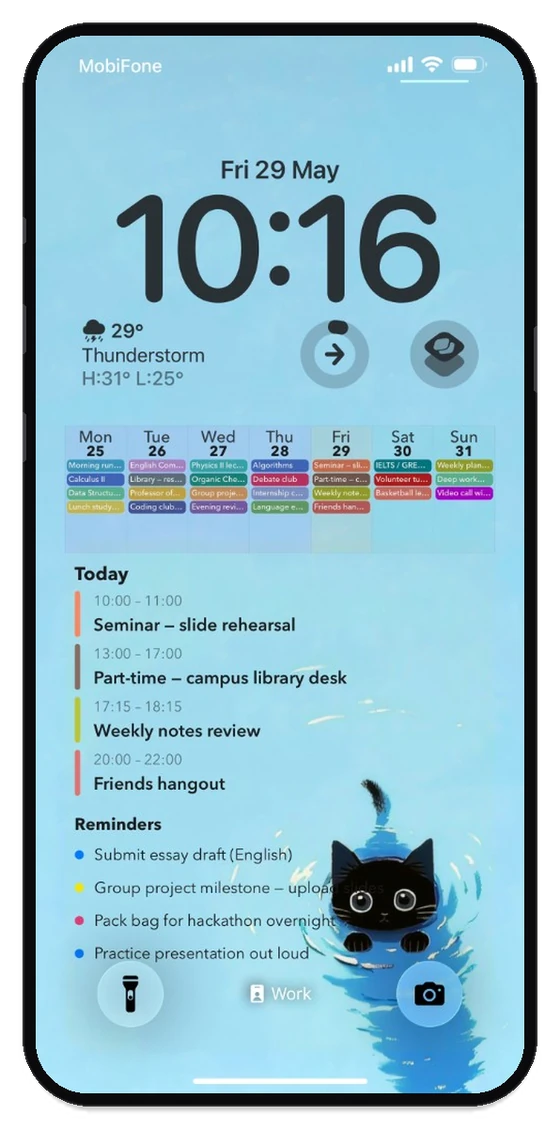
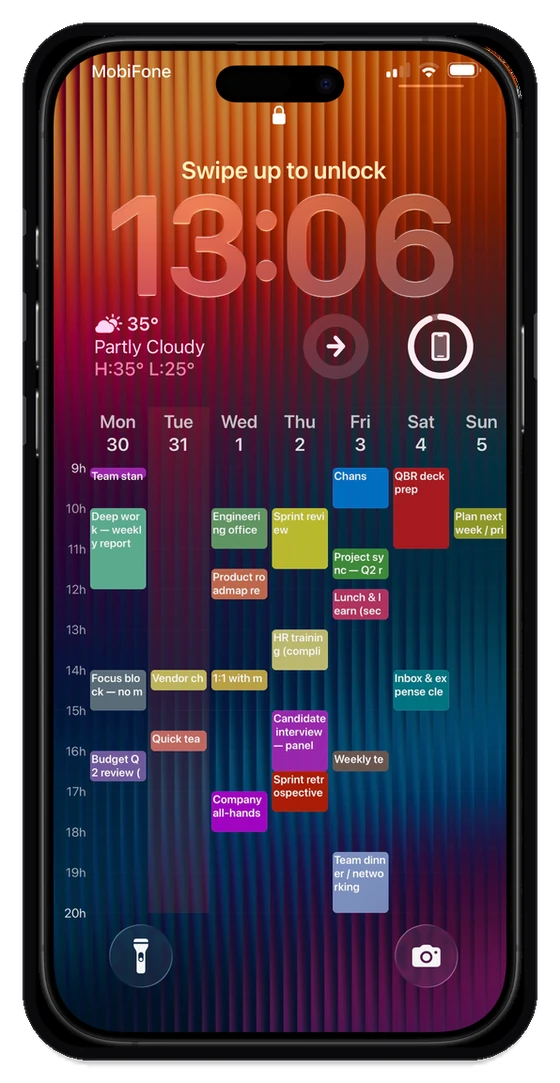
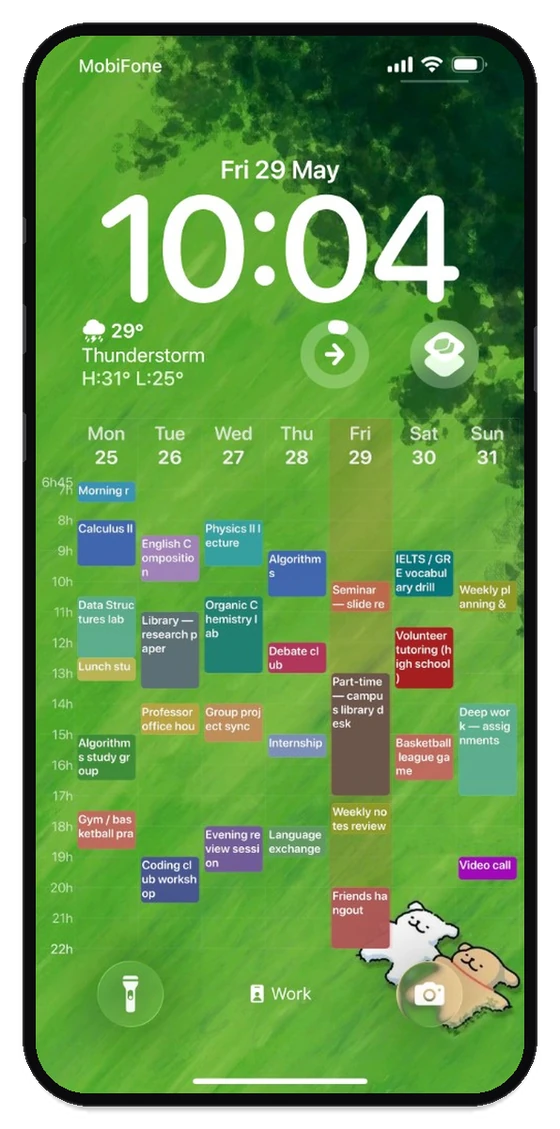
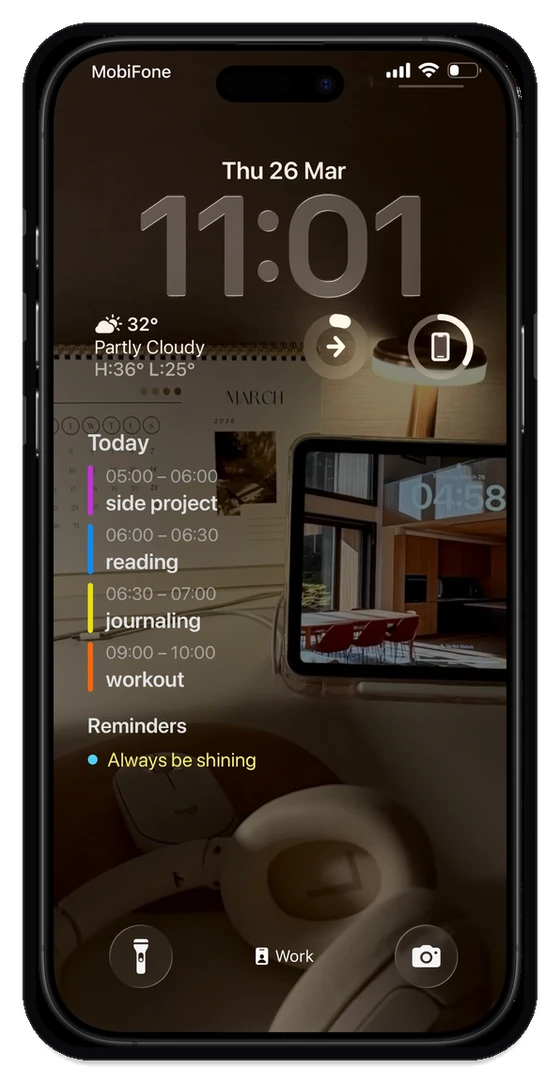
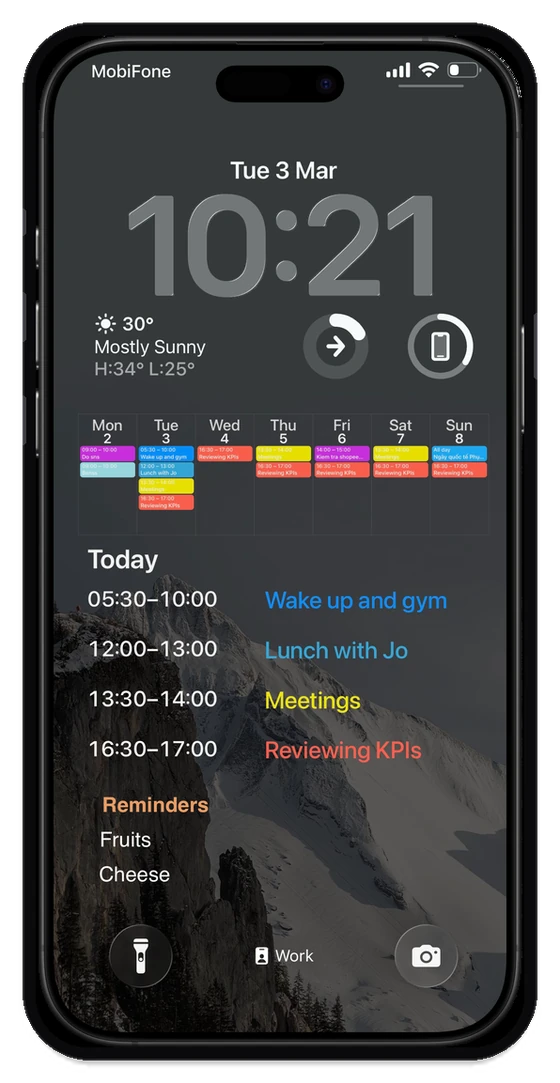
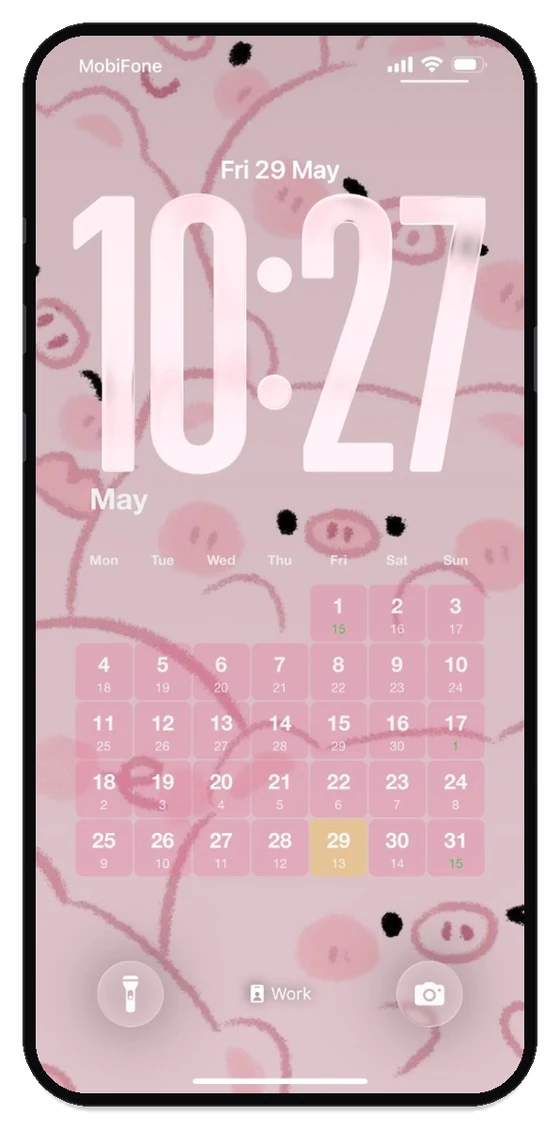
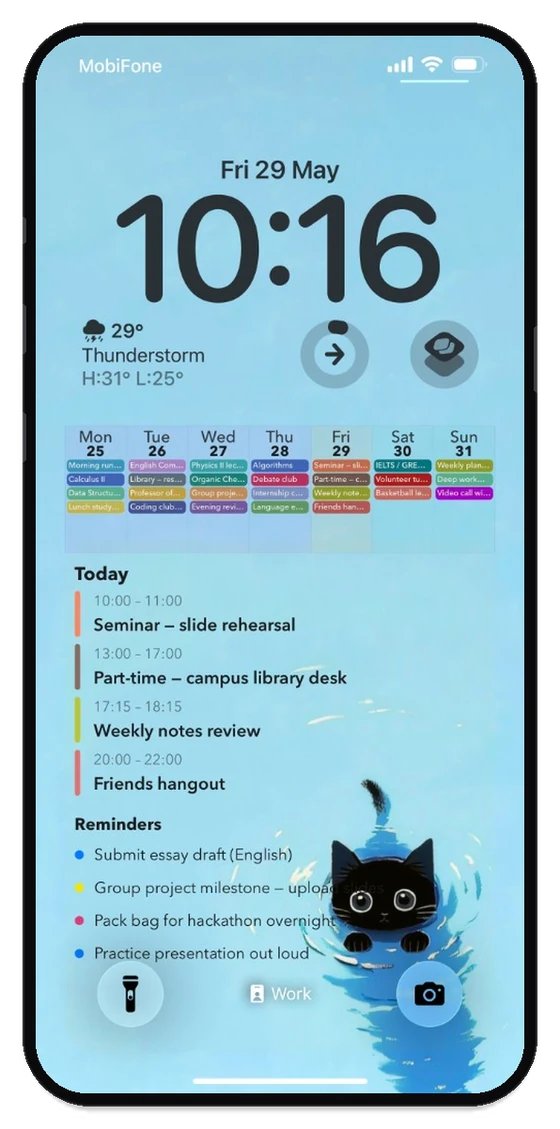
Month grids, week strips, Today lists, and Reminders: all as widgets you place on the Lock Screen, styled to fit your wallpaper.

More Lock Screen setups (same app, different presets):
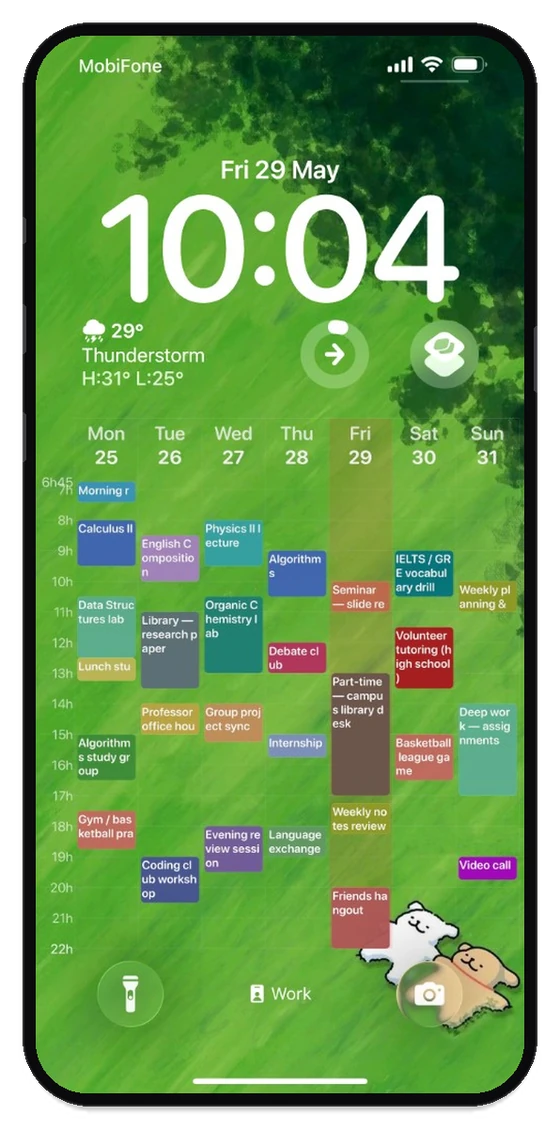
Lock Screen: week timeline grid
Lock Screen: Today list and reminders
Lock Screen: week strip and Today
Lock Screen: week overview with Today detail
Lock Screen: month calendar
Lock Screen widget: weekly columns, Today schedule, and Reminders

Preset layouts

Month, week strip, Today list, and more: start from a preset, then refine.

Spacing & margins

Tune density so events stay readable at a glance.

Fonts & colors

Match typography and accents to your wallpaper.

Reminders on the Lock Screen

Show reminder lists next to your calendar blocks.

Inside the app

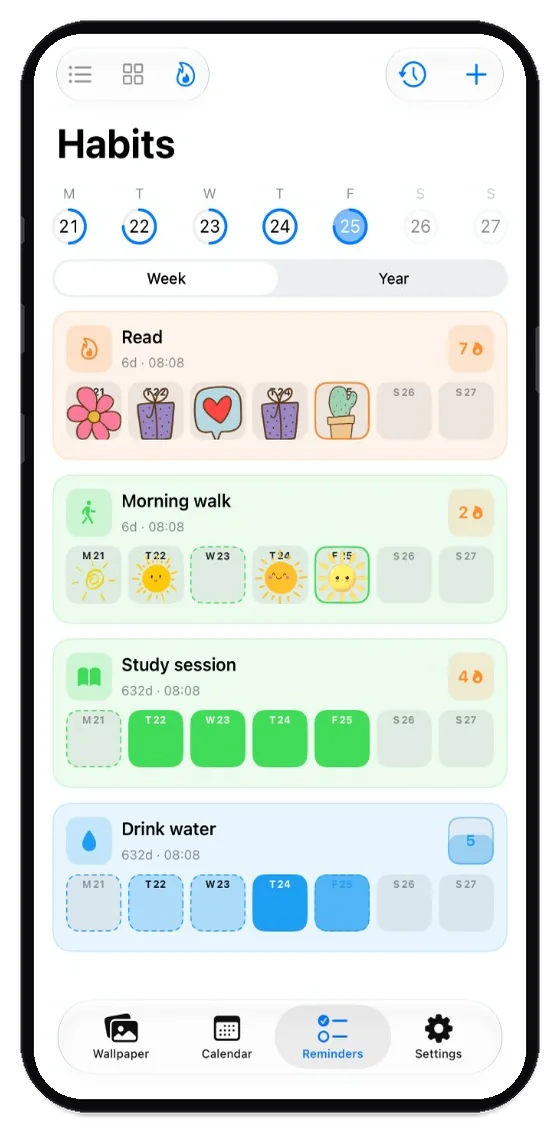
Habits, streaks, and check-ins.

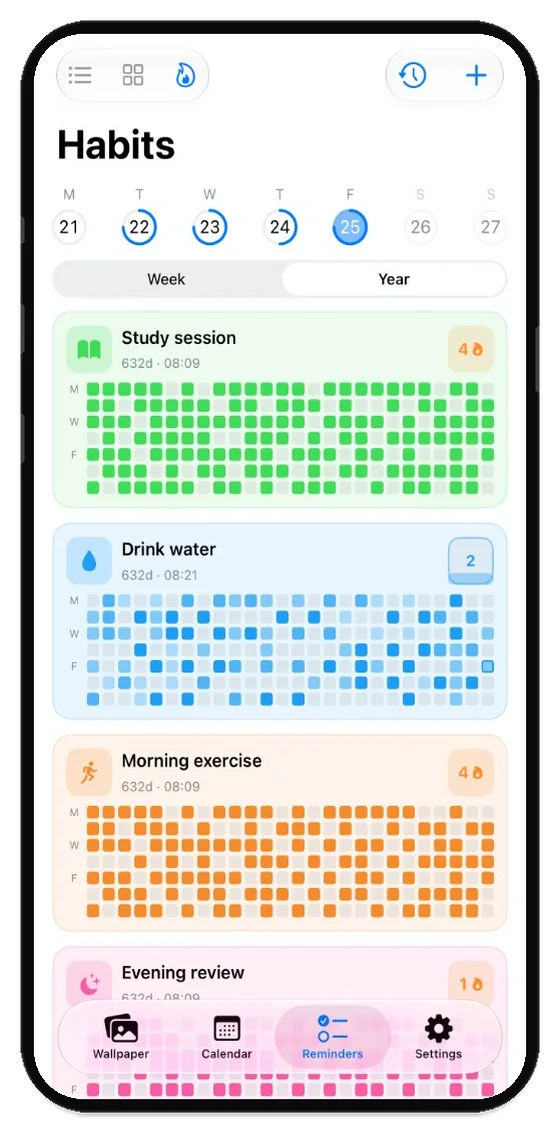
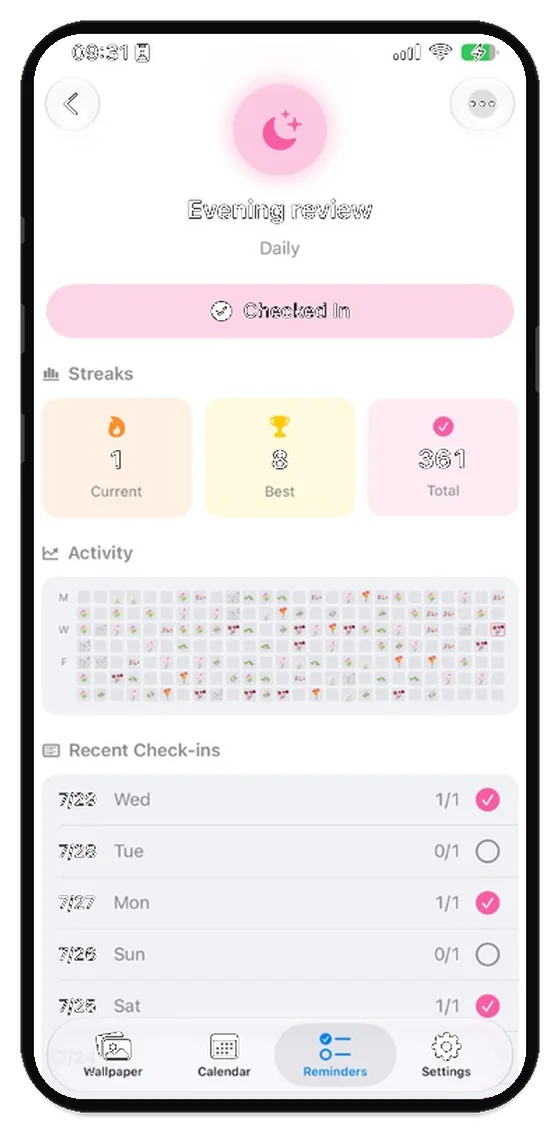
When you want more than a glance, open the app for Habits: streak counts, contribution-style grids, and one-tap check-ins, separate from the Lock Screen calendar widgets above.

In-app Habits tab: streak cards, progress grids, and Checked In buttons

Privacy

Built for your phone, not our cloud.

The calendar you see on the Lock Screen comes from what’s on your device and the accounts you already use with Apple. We don’t host a separate cloud copy of your schedule for the core Lock Screen experience.

  • On-device first: widgets and layouts render from local data where the system allows.
  • No extra account required to use the essentials.
  • Works offline for what’s already synced to your phone.
Icon: your schedule and ideas stay on your device

Ready to organize your life?

Try Lock Screen Calendar Maker on iPhone. No credit card. Get started from the App Store.

Download on the App Store

Setup

How to setup

Install Lock Screen Calendar Maker from the App Store, then open each step below for the official Shortcut and (optional) Automation: on a schedule, when you close the app, or both.

Step 1: Add the LockScreen Calendar Shortcut

The app can refresh your calendar wallpaper through Apple Shortcuts. Add the official Shortcut once; it should appear under Shortcuts → All Shortcuts (name is usually similar to LockScreen Calendar Wallpaper).

Tap Add Shortcut (opens iCloud in Safari) → Add Shortcut on the system sheet → confirm it’s listed in Shortcuts.

Step 2: Automation (recommended)

You can create more than one automation, for example a daily time and “when I close the app.”

Option A: Time of day

  1. Open ShortcutsAutomation tab → +Create Personal Automation.
  2. Choose Time of Day (e.g. 7:00 AM) → Next.
  3. Tap Add Action → search Run Shortcut → pick the shortcut you added → Next.
  4. Turn off Ask Before Running (and optionally Notify When Run) → Done.

The Shortcut will run on that schedule so your Lock Screen image stays current.

Option B: When you close the app

  1. Open ShortcutsAutomation tab → +Create Personal Automation.
  2. Choose App → select Lock Screen Calendar Maker → pick Is Closed (iOS may say “When I close the app”) → Next.
  3. Tap Add ActionRun Shortcut → choose your wallpaper shortcut → Next.
  4. Turn off Ask Before RunningDone.

Each time you leave the app, the Shortcut can run so your wallpaper catches changes you made in the app.

Shortcuts cannot re-run every time your calendar changes. Run the Shortcut manually for an instant refresh, or rely on your Automation. For videos, use the in-app Set It Once / Shortcuts help after install.