
iPhone Setup Guide: Auto Wallpaper Setup
1. Install the app
- Install Lock Screen Calendar: Locka from the App Store.
- Allow Calendar and Reminders when asked.
2. Follow the three steps in the app
Step 1. Add Shortcut
- Tap Add Shortcut. The app adds a ready-made shortcut.
- When iOS asks, tap Allow.
- Tap Run Shortcut. If asked again, choose Always Allow.
- If the Lock Screen does not change, touch and hold it, then select the calendar wallpaper.
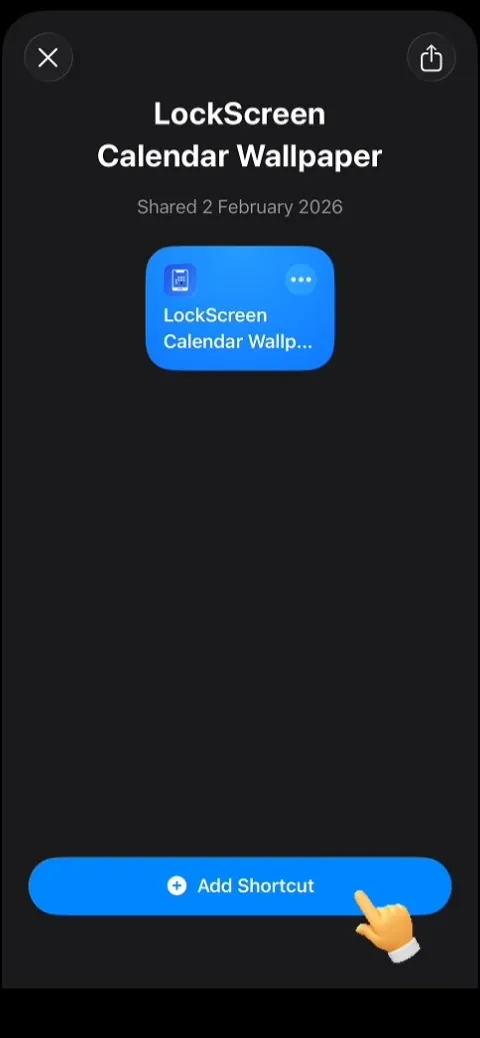
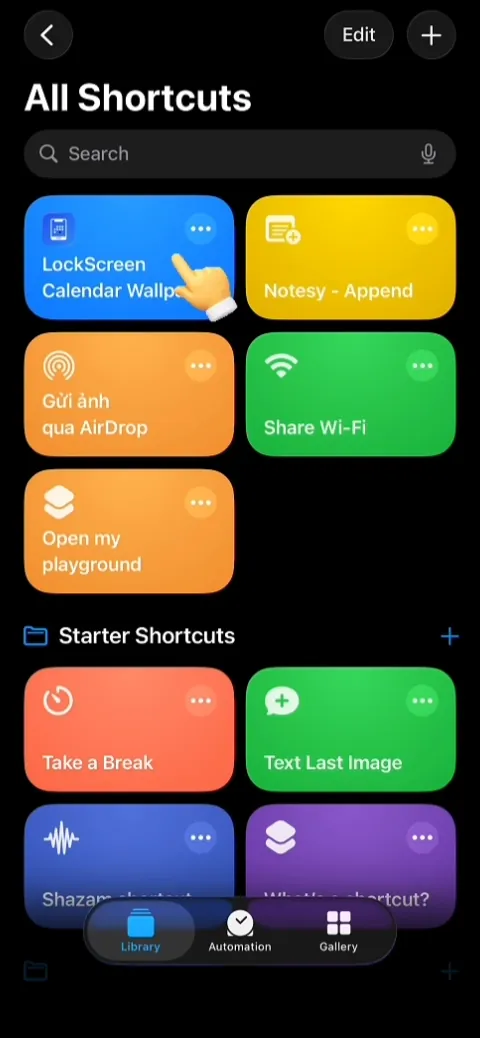
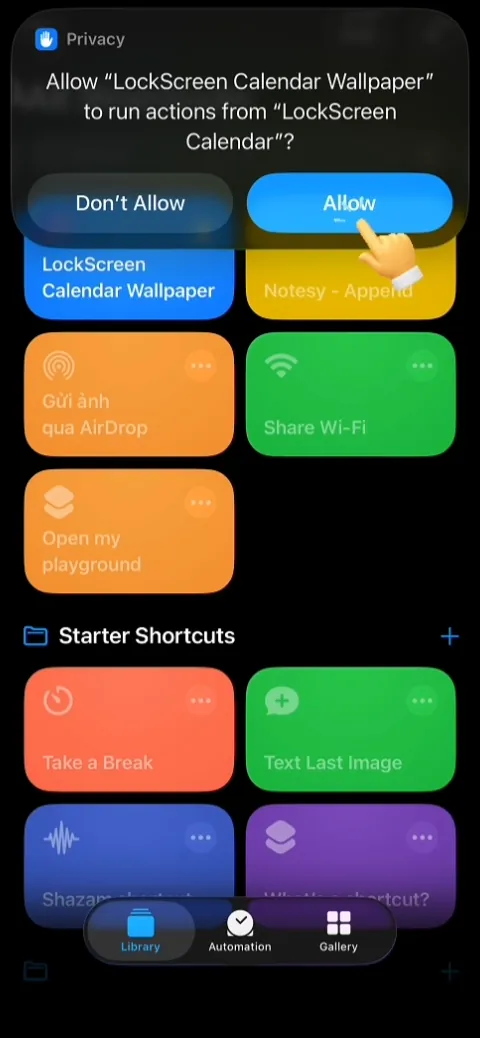
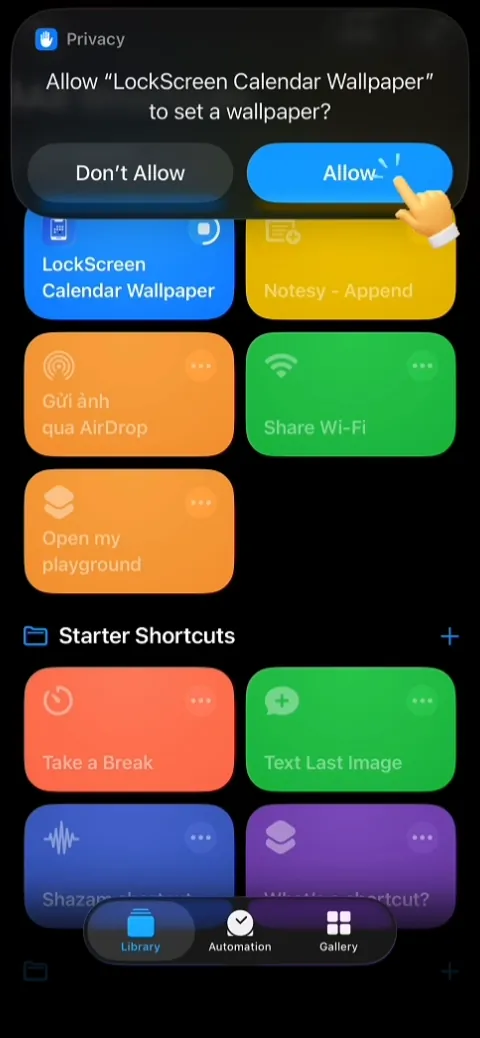
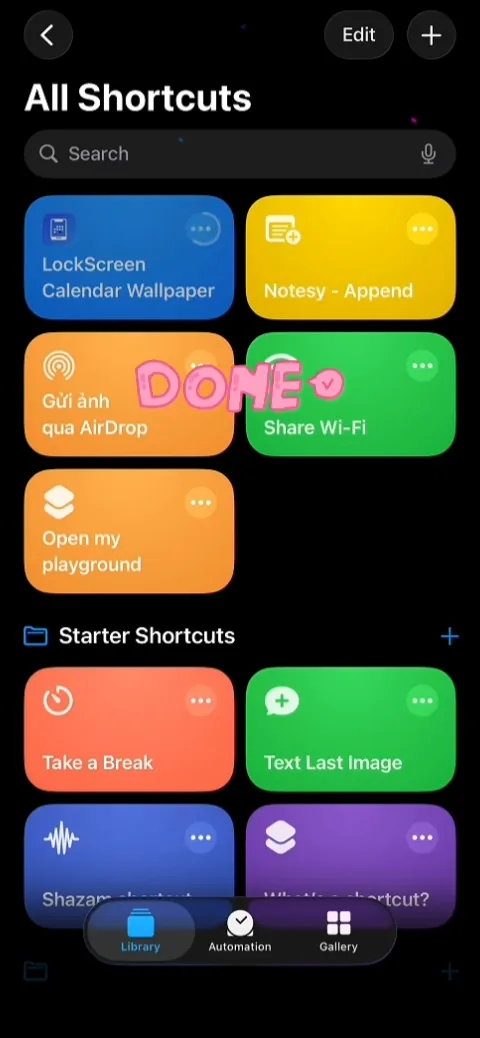
Swipe sideways.
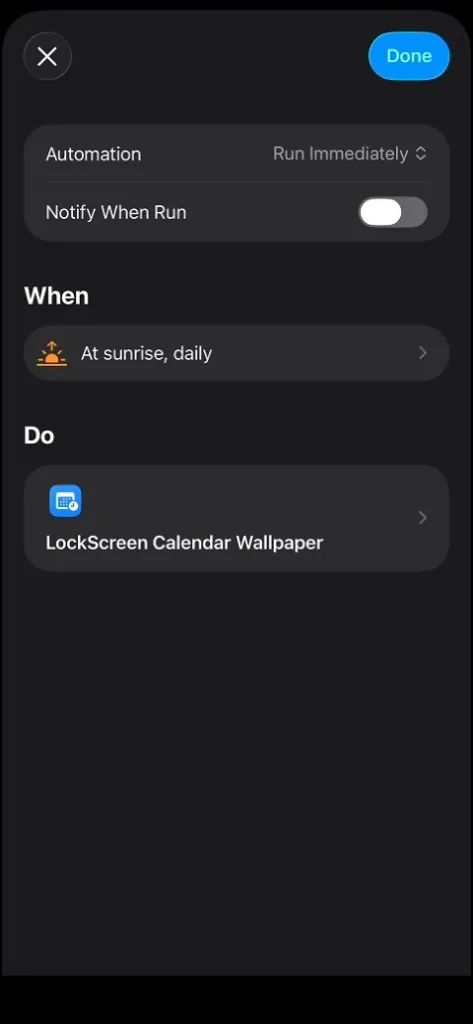
Step 2. Set Time Trigger
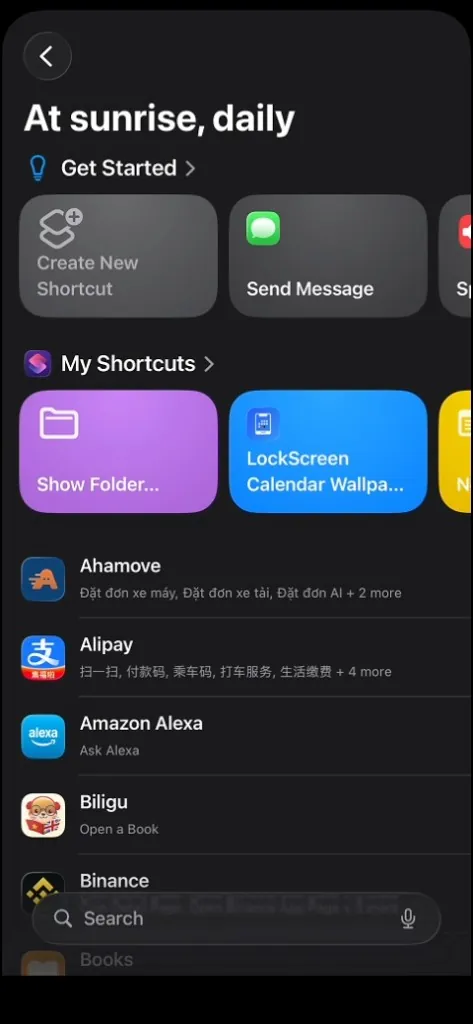
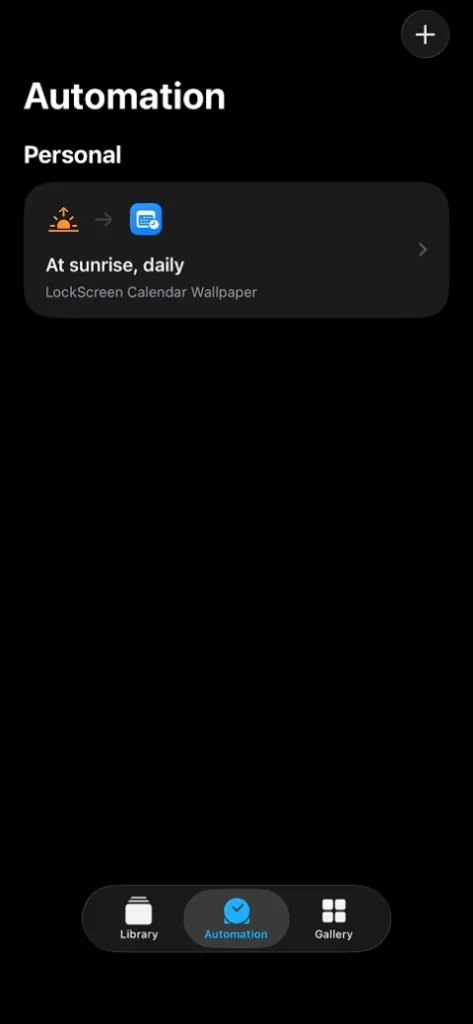
- Open the Shortcuts app, go to the Automation tab, and tap New Automation.
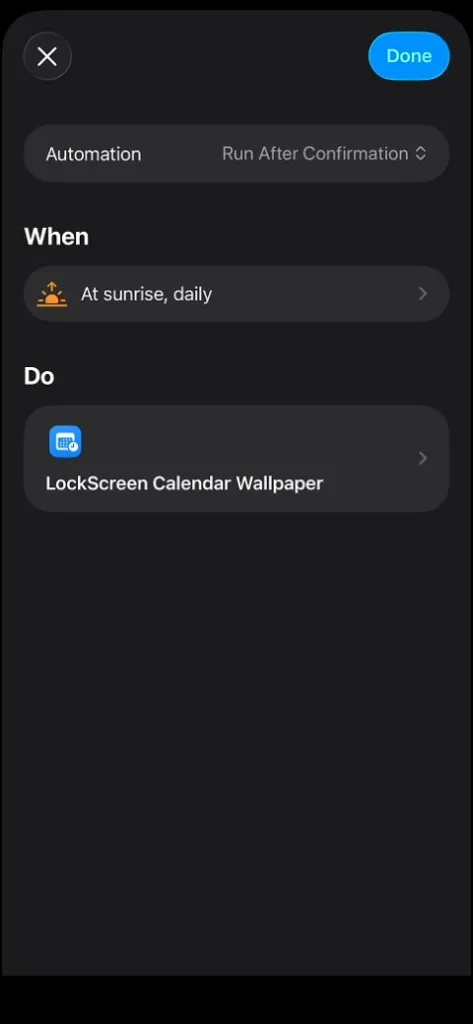
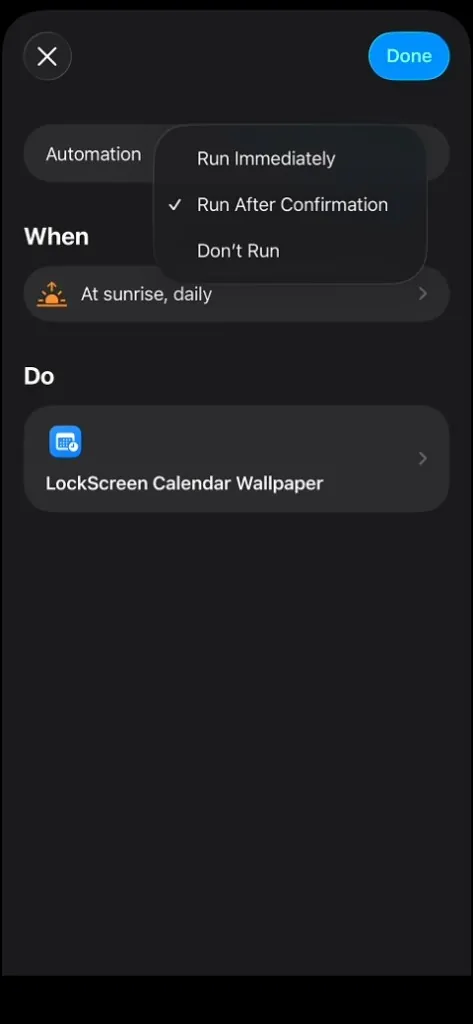
- Choose Time of Day. Set a time (for example 8:00 AM), Repeat Daily, and Run Immediately.
- Tap Next.
- Select LockScreen Calendar Wallpaper. Keep that exact name.
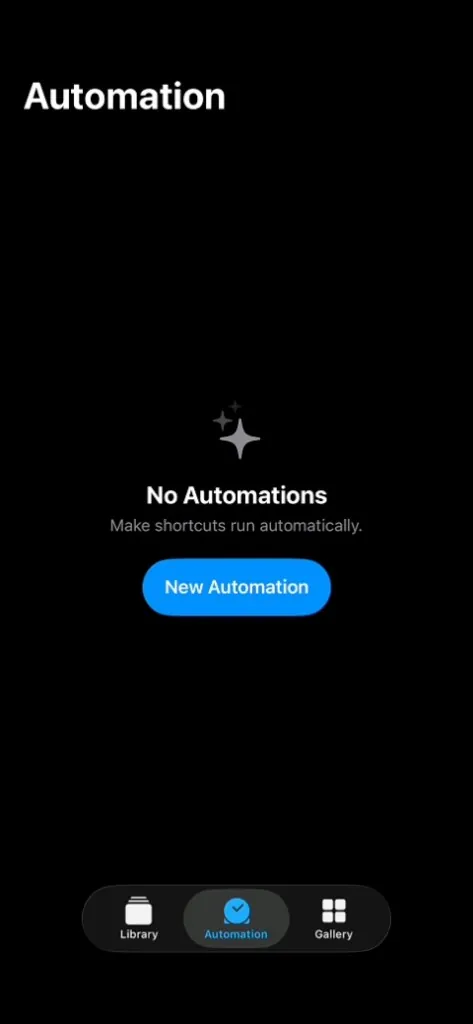
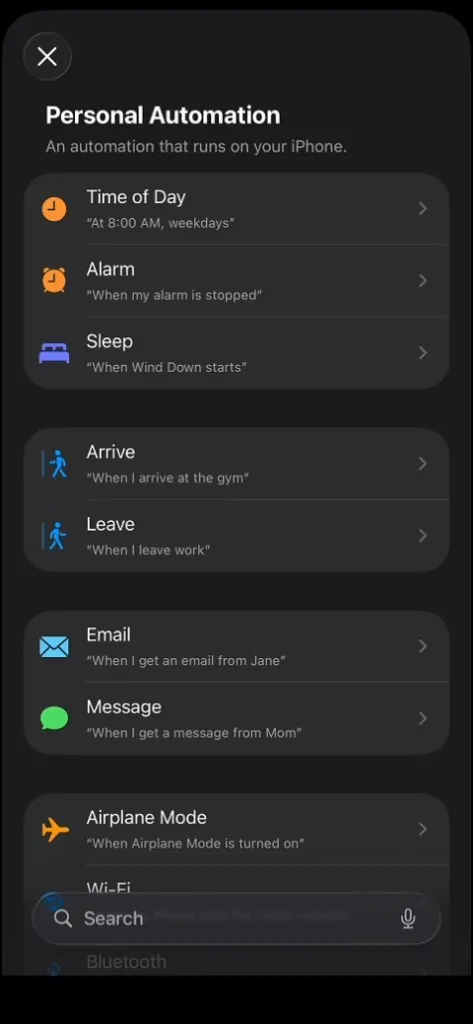
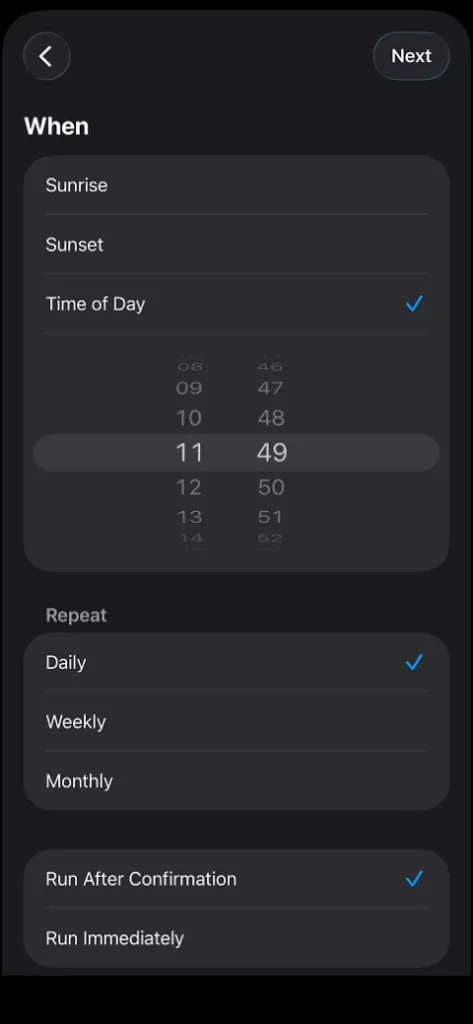
Swipe sideways.
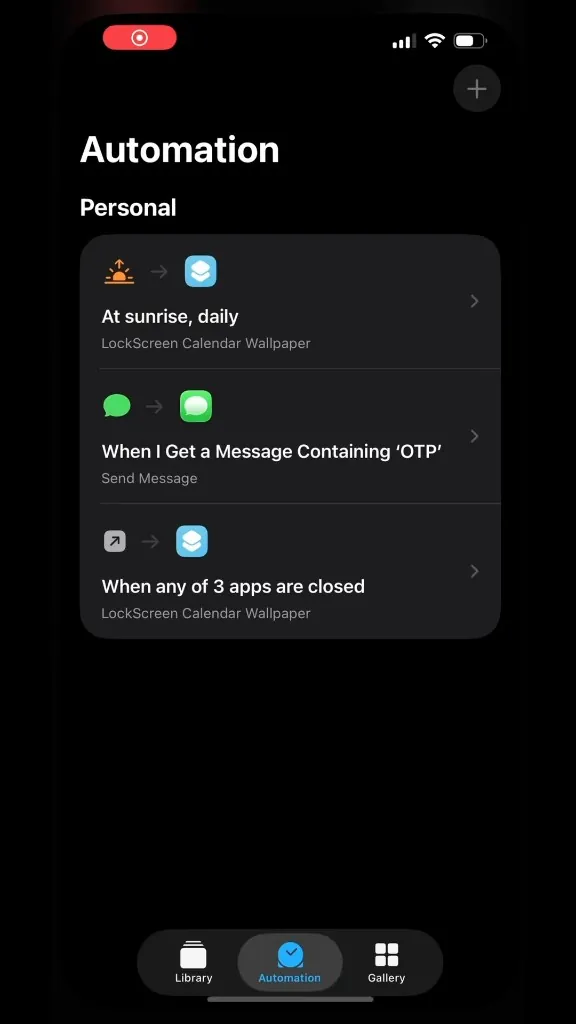
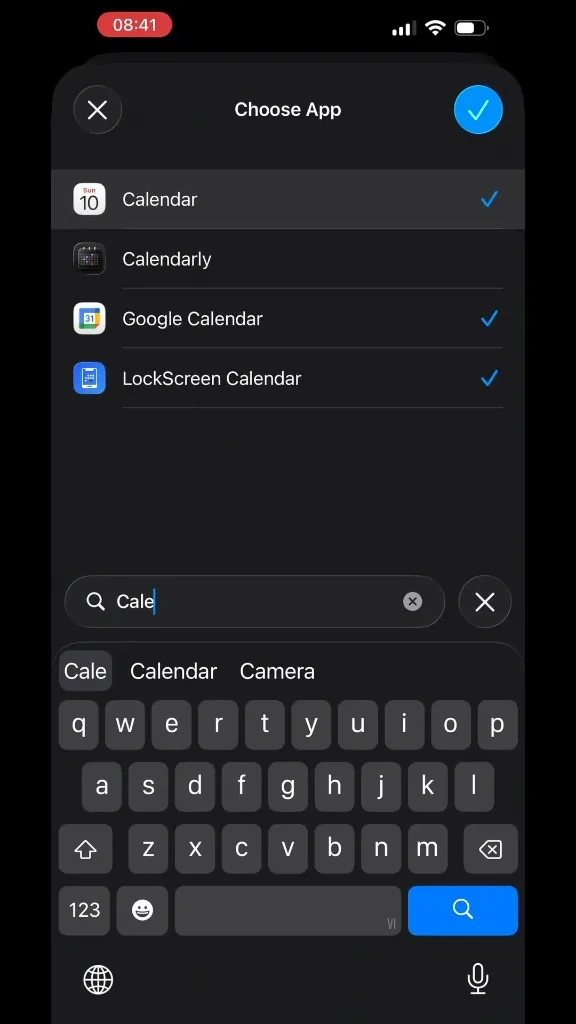
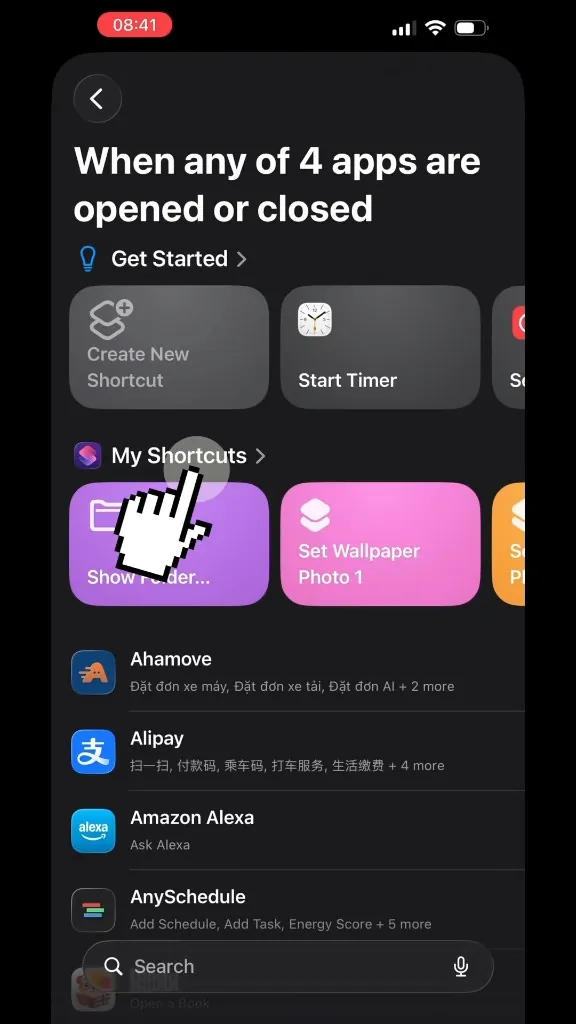
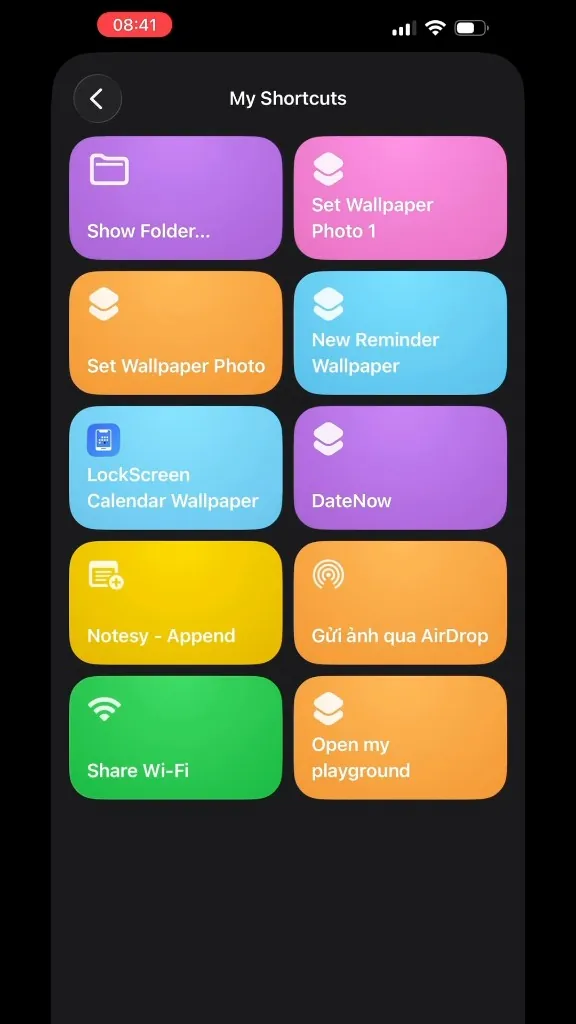
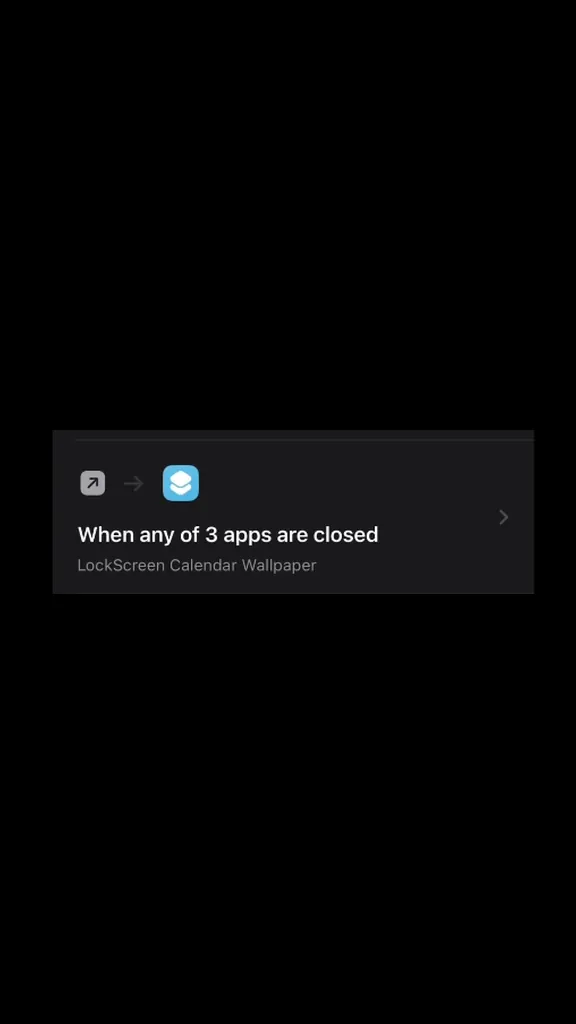
Step 3. Close App Trigger
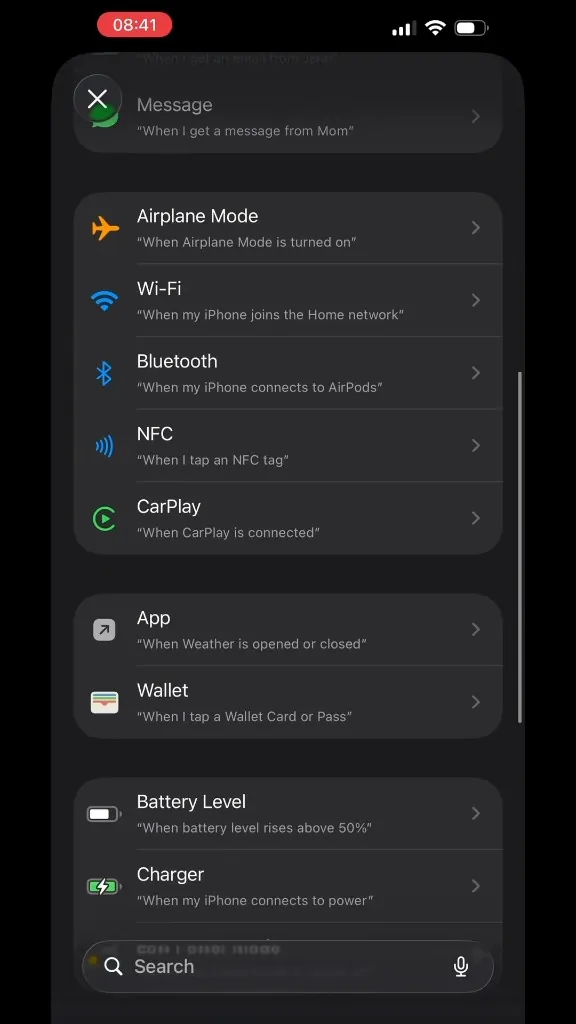
- Open the Shortcuts app, go to the Automation tab, and tap New Automation.
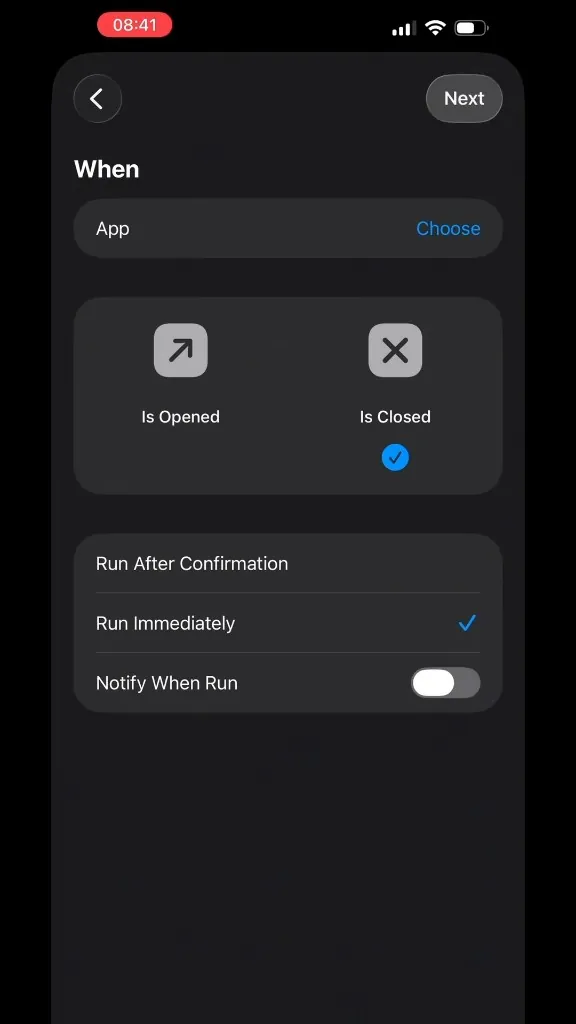
- Choose App, then Lock Screen Calendar: Locka, and set it to Is Closed.
- Turn on Run Immediately, then tap Next.
- Select LockScreen Calendar Wallpaper again.
Swipe sideways.
3. After setup
- To refresh right away, run the shortcut again, or open the app and tap UPDATE.
- Calendar and reminder changes show on the Lock Screen only after the shortcut runs, either by hand or from an automation.
- Optional: long-press the Lock Screen → Customize to add Lock Screen widgets.
- Open the Wallpaper tab.
- Swipe to a calendar style. Optionally tap Customize, then Set as Current or UPDATE.
4. Troubleshooting
- Cannot find the guide: Wallpaper tab → scroll under the preview → Auto Wallpaper Setup Guide.
- Wallpaper did not change: Run Shortcut again. Select the Lock Screen that shows the new calendar. In Automations, turn off Ask Before Running.
- Unable to Set Wallpaper Photo: Open the shortcut (⋯) and pick a different Wallpaper slot. Keep the name LockScreen Calendar Wallpaper.
- Shortcut name was changed or the action is missing: Delete it and add it again from Auto Wallpaper Setup. Renaming it breaks Update from the app.
- Events missing: Allow Calendar and Reminders, turn on the calendars you want in Customize, then run the shortcut again.
Still stuck? Open the app → Settings → Contact us, or email vinh.vo459@gmail.com.